How to claim your real estate business on ChatGPT
Follow the steps to claim your business on ChatGPT, complete verification and understand what AI search could mean for your real estate business.
ChatGPT now lets eligible business owners claim their business profile, a bit like Google Business Profile. Once the required verification is approved, you can manage the business information you provide through ChatGPT’s Business Hub. OpenAI’s overview
If you run a real estate business, the walkthrough below explains how to find your listing, submit a claim and complete verification. You can work through it yourself, with screenshots showing where to click.
Before you start
Use the ChatGPT account you want to manage the business from, and have your business website ready. Depending on the verification options offered, you may need access to your business phone, business email or website domain settings.
You must own the business or be authorized to represent it.
How to claim your business on ChatGPT
Step 1: Open Business Hub
Go to ChatGPT Business Hub and sign in with the account you want to use to manage your business.
You can also start from OpenAI’s business page and click Claim your business.
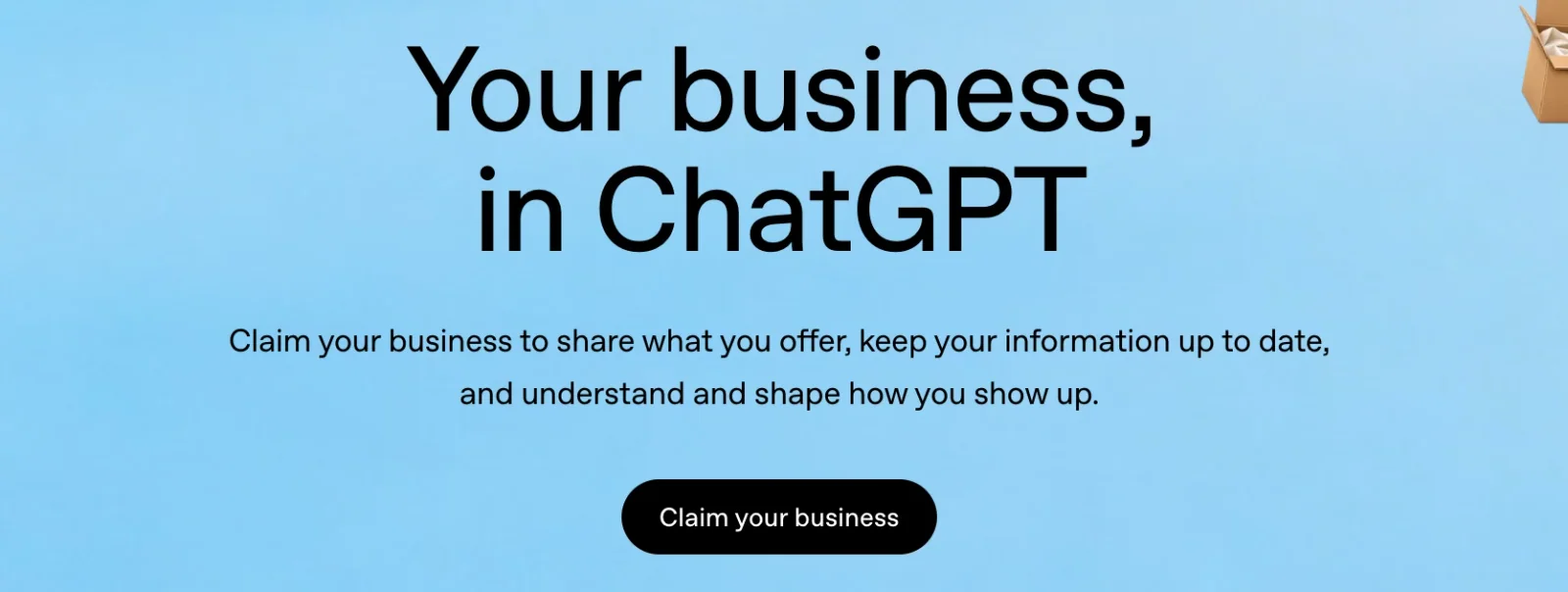
Step 2: Find your business
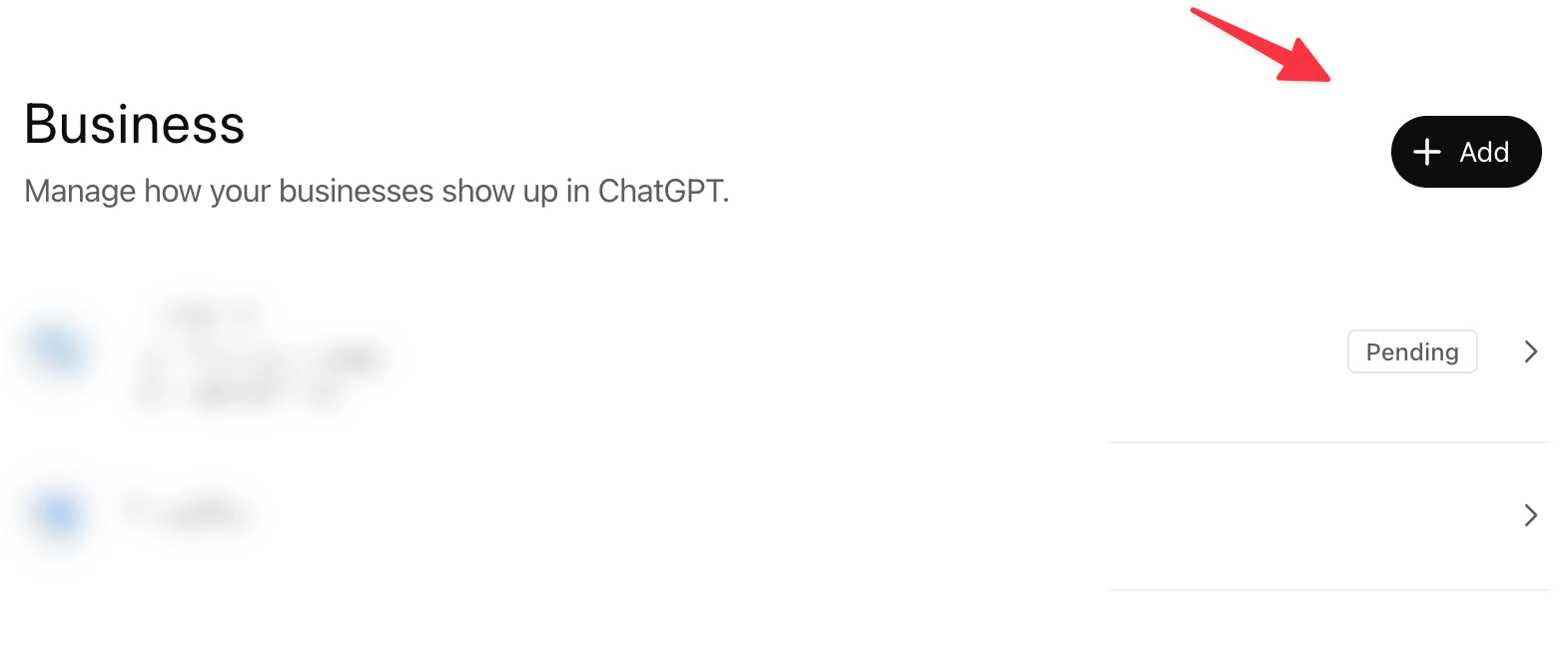
On the Business page, click Add.
Search for your business name. Check the website and other details before choosing a result.
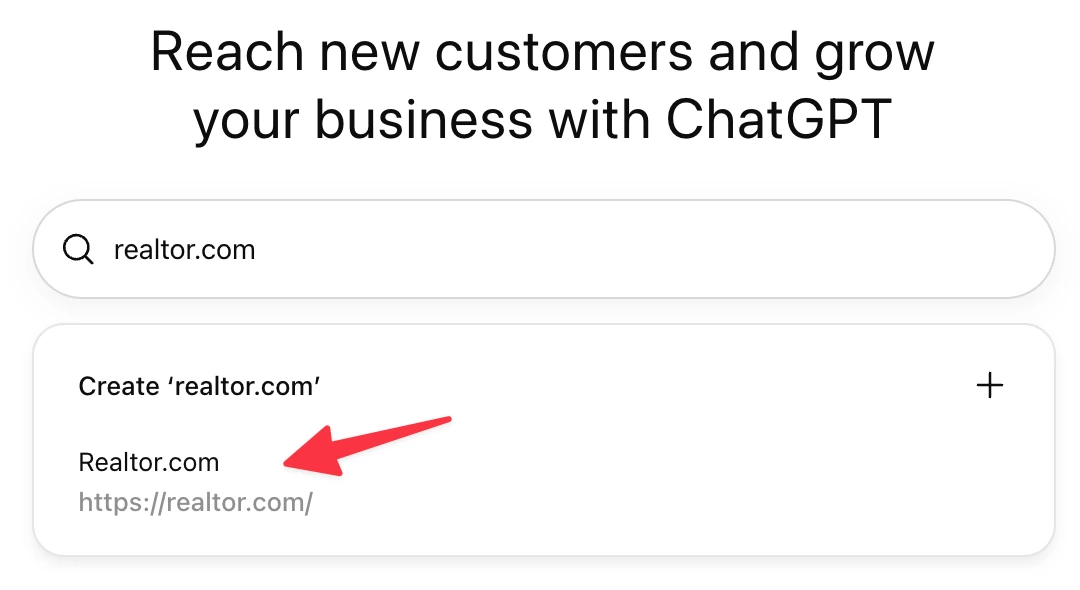
Choose a business you own or are authorized to represent. If you have an agent page on Realtor.com, that does not give you authority to claim Realtor.com itself. Search for your own business or brokerage.
Eligible online businesses may see an option to add a missing listing. Availability depends on business type and location. If yours is missing and no add option appears, contact OpenAI Support. OpenAI’s eligibility guidance
Step 3: Start the claim and confirm your website
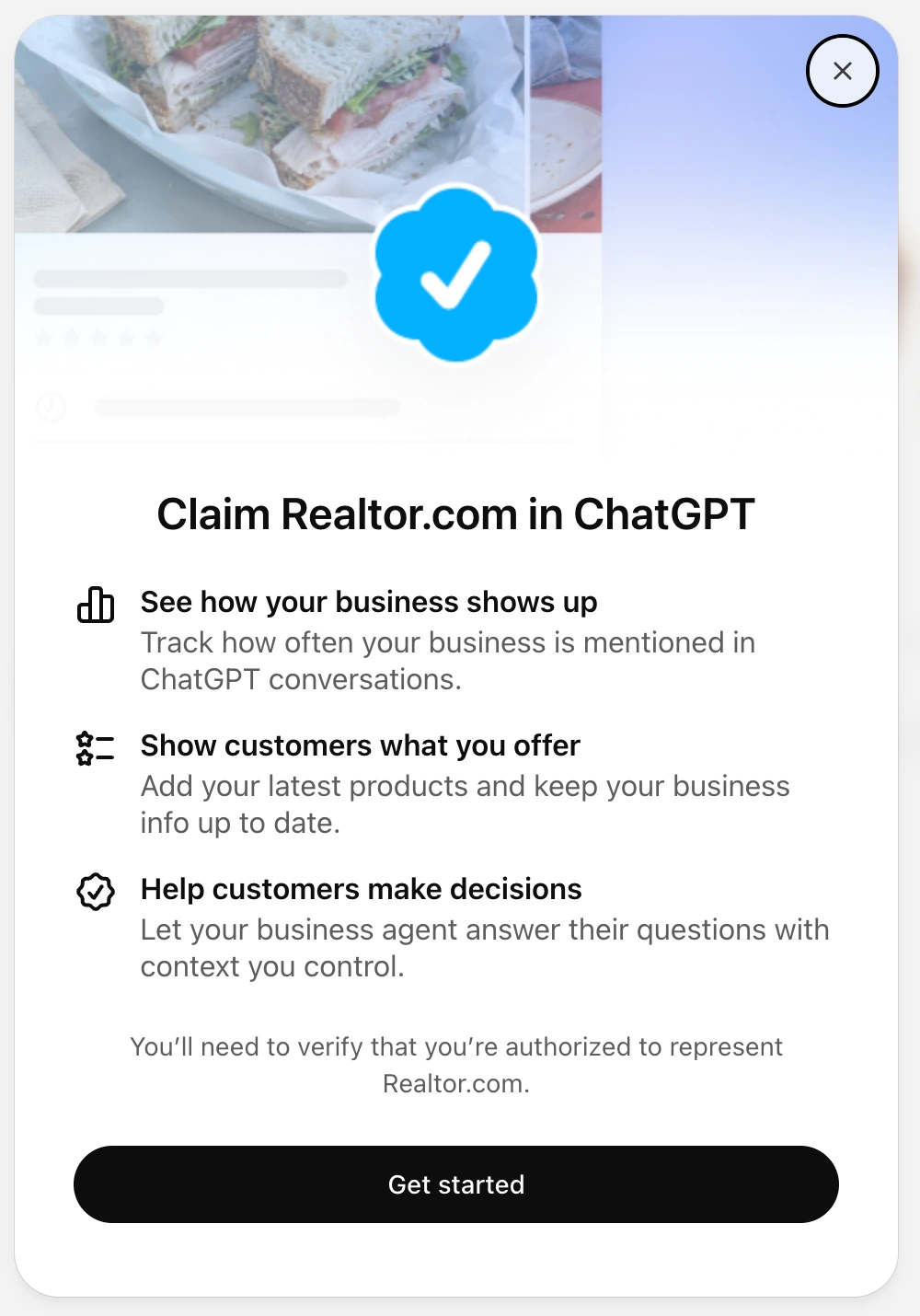
Open the matching listing, read the claim screen and click Get started.
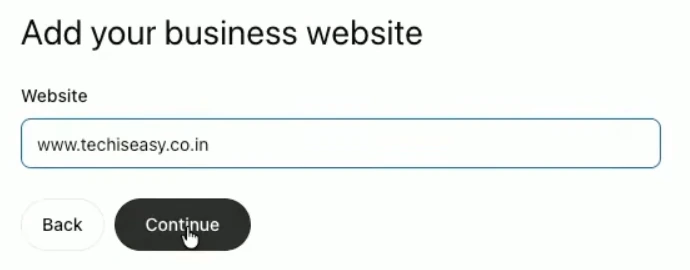
If you are asked for your website, enter your business website and click Continue.
Step 4: Verify your connection to the business
Choose one of the methods offered in your account:
- Business phone: receive a code by text or an automated call.
- Business email: receive a code at the business email address shown.
- Website domain: add the TXT record supplied by ChatGPT to your domain’s DNS settings.
- Shopify: connect the store you are authorized to manage, if that option applies.
The website route is shown below. DNS is where your domain’s settings are managed. If someone looks after your website, send them the record displayed in your account and ask them to add it.
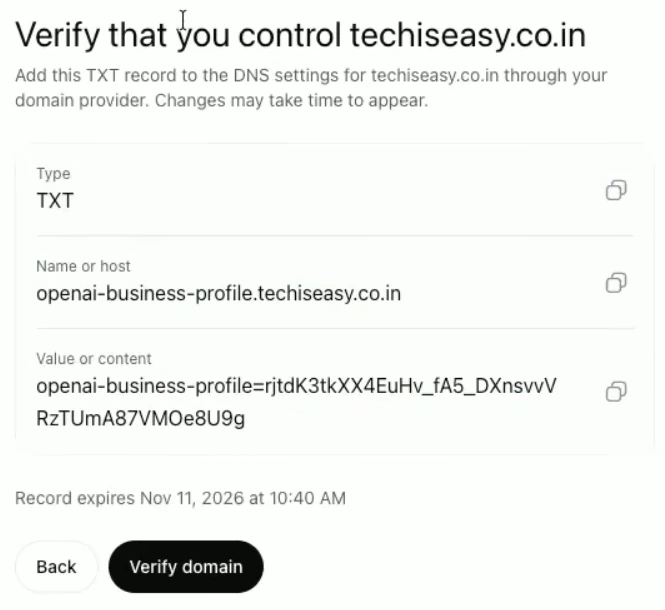
Copy the type, name or host, and value or content exactly from your own screen. After the record has been added, return to ChatGPT and click Verify domain. It may take time for a new record to be detected. Verification instructions
Step 5: Add the business details you are asked for
Follow the prompts in your account if your screens appear in a different order.
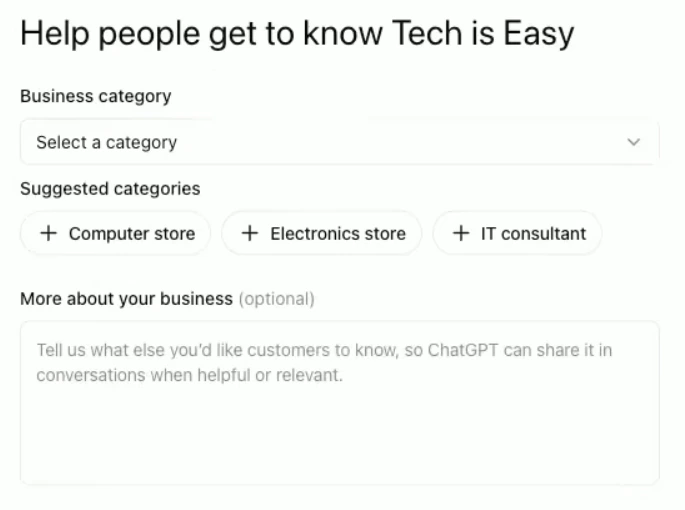
Choose the category that fits your business. If there is space for a description, explain what you do and the areas you serve in plain language. Use details a buyer or seller would need when deciding whether to contact you.
Add the public phone number and email address you want customers to use, where those fields are available. Check both before continuing.
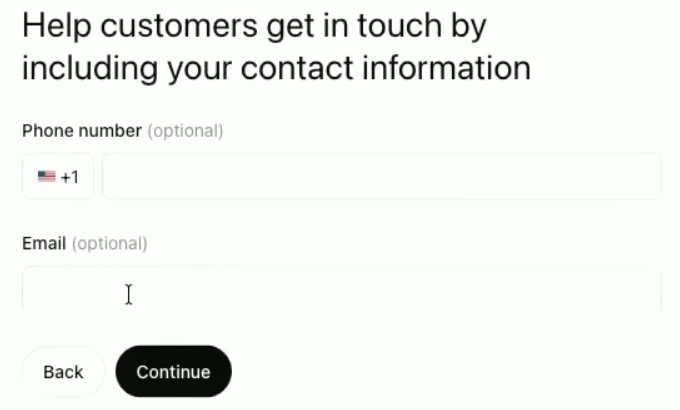
Step 6: Check the status in your business overview
When you reach the confirmation screen, click Go to business overview.
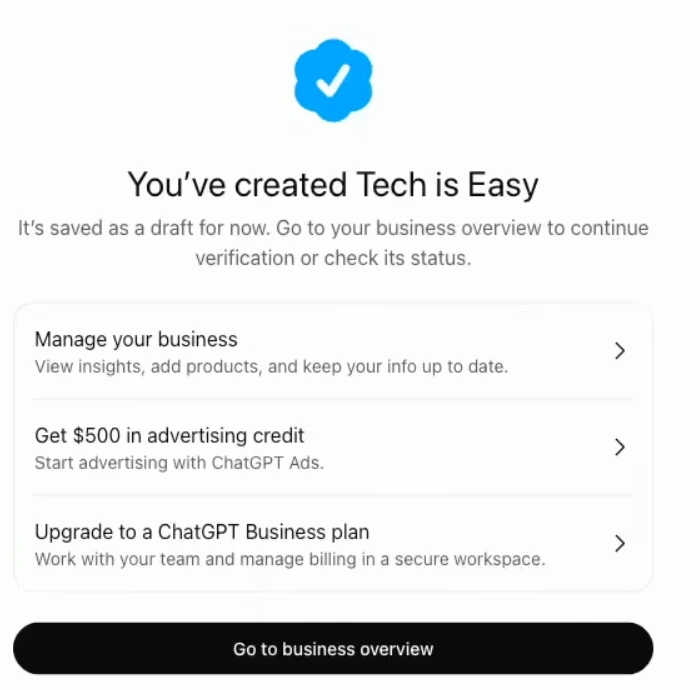
The screen above says the profile is saved as a draft. Open the overview to see what still needs to be completed. A draft confirmation does not mean verification has been approved.
The advertising and upgrade buttons are separate offers on this screen. You can continue to your business overview without using them.
Step 7: Complete identity verification and wait for approval
OpenAI emails its claim decision. Complete the separate Persona identity check when prompted. You may need ID and documents showing you can represent the business. Submit them directly through Persona.
Persona approval is required before you can publish changes or view insights. The blue verified badge appears after that approval. Submitting a claim alone does not earn it. Identity verification requirements
Step 8: Review your approved profile
After approval, check the information you can manage, including your website, business description, category and logo. OpenAI reviews changes, so an update may take time to appear. Managing your profile
Return when your business details change. A new website address or a different description of your services should be reflected in the information you provide.
Why this matters for your business
Your business can come up in a ChatGPT answer before someone visits your website. When it does, people can open its profile to learn more. Claiming and verifying an eligible profile gives you a way to contribute current information about what you offer. How business profiles work
For a realtor, that makes the basic details worth checking. Your website should lead to the right place. Your description should explain the work you actually do. A buyer or seller should be able to understand whether your business is relevant to them.
ChatGPT may use the information you supply when answering questions. It can also use other sources. Claiming does not give you control over every answer or guarantee a recommendation, higher placement or more sales. What claiming changes
Business Hub also shows overall activity such as mentions, website clicks and the topics where your business appears. Figures become available once there is enough activity to report. You are not given people’s private conversations. Business Hub insights
If people are clicking through, check that they arrive on a useful page. If a topic keeps appearing, check whether your website explains that part of your work clearly. You can use what you see to decide which information needs attention.
From the Google era to the AI era
You probably already check your website, your Google Business Profile and what appears when someone searches your name.
AI gives people another way to look. They can explain what they need, compare options and ask follow-up questions in the same conversation. OpenAI is building business profiles and, for eligible businesses, business chatbots around that experience. OpenAI’s announcement
A buyer or seller still needs to know which areas you cover, who you work with and what help you provide. As people use AI to research those decisions, your business information needs to make sense inside those conversations too.
OpenAI launched the program in beta on November 10, 2026. It is early enough to learn how it works as it develops: check your eligibility, review your details and see what your account lets you manage. Launch announcement
OpenAI says it plans to expand the program to more markets and business categories. Business chatbots already let eligible U.S. ecommerce and online service businesses answer questions using their own information. Access has separate requirements, so an approved profile does not mean every realtor can publish one. Current availability
I expect more of the research that happens before a first call to happen in conversations with AI. A prospect may arrive having already asked about your business and compared it with another realtor.
You would want to know if your Google profile showed the wrong website. Give your ChatGPT profile the same attention before a prospective client is the one to point it out.
If you get stuck
Reply to the email where I sent you this guide and tell me which step you reached. I’ll help you work through it.